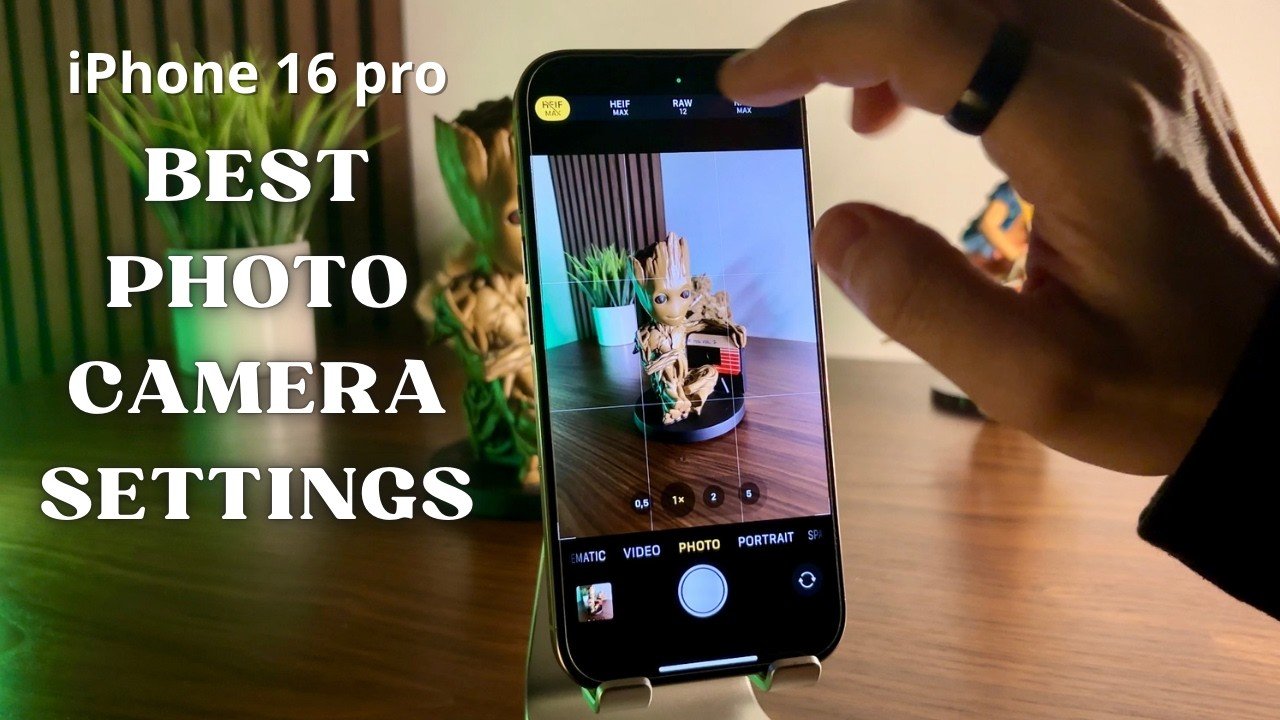
The Apple iPhone camera is already one of the best smartphone cameras in the world — yet most users never unlock its full potential.
Blurry shots, dull colors, over-processed portraits, and low-light noise usually happen because of wrong camera settings, not a bad camera.
If your iPhone photos don’t look “Instagram-ready” or “professional,” this guide will instantly fix that.
Turn These iPhone Camera Settings ON First
Enable Grid for Perfect Composition
📍 Settings → Camera → Grid
This helps you follow the rule of thirds, keeping your subject balanced and visually pleasing.
Once you use it, you’ll never turn it off.
Use Smart HDR (But Control It)
📍 Settings → Camera → Smart HDR → ON
Smart HDR balances highlights and shadows automatically — great for skies, faces, and landscapes.
👉 Pro Tip: If photos look over-processed, tap to lock exposure (AE/AF Lock) before shooting.
Turn On Photographic Styles (Avoid “Standard”)
📍 Settings → Camera → Photographic Styles
Best options:
- Rich Contrast – Great for travel & outdoor shots
- Warm – Perfect for skin tones
- Standard – Often too flat (avoid)
Unlike filters, these apply before the photo is captured, preserving quality.
Secret Settings That Make Photos Look DSLR-Like
Enable Apple ProRAW (For Serious Photography)
📍 Settings → Camera → Formats → Apple ProRAW → ON
Best for:
- Editing in Lightroom
- Landscape & night photography
- Maximum detail and dynamic range
⚠️ Uses more storage — enable only when needed.
Use HEIF Max Instead of JPEG
📍 Settings → Camera → Formats → High Efficiency
HEIF keeps:
✔️ Better quality
✔️ Smaller file size
✔️ More editing flexibility
Perfect for everyday photos.
Turn OFF “View Outside the Frame”
📍 Settings → Camera → View Outside the Frame → OFF
This feature can confuse framing and cause awkward compositions. Turning it off gives cleaner, intentional shots.
Best iPhone Camera Settings for Night & Low Light
Use Night Mode Manually
When Night Mode appears:
- Tap the moon icon
- Slide exposure to 2–3 seconds (handheld)
- Keep phone steady or use a tripod
This dramatically improves sharpness and reduces noise.
Reduce Motion Blur
📍 Settings → Camera → Prioritize Faster Shooting → ON
Helps capture moving subjects — kids, pets, cars — without blur.
Portrait Mode Fixes Most People Miss
Use 2x or 3x Lens for Portraits
Avoid the 1x wide lens for faces.
Best results:
- 2x = natural face shape
- 3x = professional depth & background blur
Faces instantly look more realistic and flattering.
Adjust Depth After Clicking
Open Photos → Edit → Depth
Lower the blur slightly for a DSLR-style look, not artificial cutouts.
Video Settings That Instantly Upgrade Quality
Set Video to 4K at 30fps
📍 Settings → Camera → Record Video → 4K at 30fps
Best balance of:
✔️ Cinematic quality
✔️ Storage efficiency
✔️ Smooth motion
Use 4K 60fps only for action shots.
Turn ON Enhanced Stabilization
📍 Settings → Camera → Enhanced Stabilization → ON
Perfect for:
- Vlogs
- Walking shots
- Travel videos
Quick Daily Shooting Tips (Huge Impact)
✔️ Clean the lens before every shoot
✔️ Tap to focus, then slide exposure down slightly
✔️ Avoid digital zoom — move closer instead
✔️ Shoot in natural light whenever possible
These small habits make a massive difference.
Final Verdict
Your iPhone camera is powerful — but settings decide everything.
Once you apply these tweaks:
- Photos look sharper
- Colors feel natural
- Night shots improve dramatically
- Portraits look professional
No extra apps. No expensive gear. Just smart settings.
📸 Try these today — your next iPhone photo will surprise you.
If you want, I can also write:
- “Best iPhone Camera Settings for Instagram Reels”
- “iPhone Camera vs DSLR – Real Comparison”
- “Hidden iOS Camera Tricks Apple Never Talks About”